
How to install mods on Minecraft: Forge, Fabric and Modrinth (2026)
Information is current as of August 2026.
“How to install mods?” - the question with which the real Minecraft begins for many: mini-maps, shaders, new dimensions, assemblies for hundreds of mods. And where the problems begin: the game crashes, mods are “not visible”, Forge does not start. The threads “help, installed a mod - the game won’t start” are consistently among the most commented. We have collected working instructions for 2026 - from choosing a bootloader to solving common errors, with feedback from players.
Step 0: Forge, Fabric or NeoForge
Mods are not installed “just like that” - they need a mod loader, and choosing the right one is the cause of half of all problems:
- Forge - the oldest and most popular loader: the largest library of mods, almost all large content assemblies. Cons: updates more slowly after new versions of the game are released, takes longer to launch.
- NeoForge — a modern offshoot of Forge, where developers are gradually moving; on new versions it is more and more often it.
- Fabric - light and fast, a favorite of performance mod creators (Sodium, Lithium, Iris). Updated almost instantly after versions are released.
The main rule from the comments: first choose mods, then loader. On the page of each mod it is written under what loader and what version of the game it is built for. Forge mods and Fabric mods are incompatible with each other (workarounds like Sinytra Connector cover rare cases - it’s better for a beginner not to mess with it).
Method 1: Automatic - CurseForge App or Modrinth App
The easiest way, which is recommended to all beginners:
- Install the CurseForge or Modrinth application from the official website.
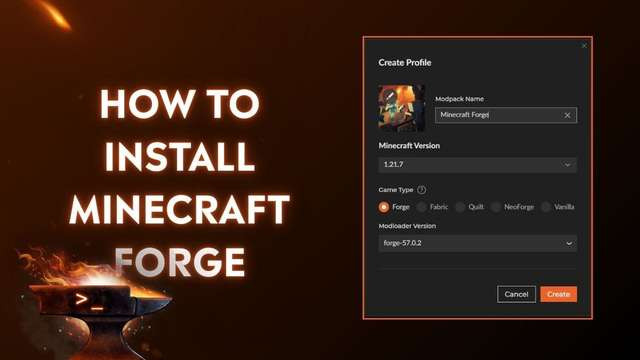
- Create a profile: select the Minecraft version and loader (Forge/Fabric/NeoForge) - the application will download the necessary files itself.
- Using the “Mod Browse”, add mods to your profile in one click - dependencies (Fabric API, Cloth Config, Architectury) will be pulled up automatically.
- Click Play. For ready-made assemblies - the “Modpacks” tab: the entire installation, no need to configure anything.
Method 2: Manual installation
- Download the Forge installer from files.minecraftforge.net or Fabric installer from fabricmc.net and run it (you need Java installed; if the .jar does not open, Jarfix will help).
- Run the game once with the new Forge/Fabric profile - a mods folder will be created.
- Open the game folder: Windows+R → %appdata%\.minecraft (on macOS: ~/Library/Application Support/minecraft).
- Place the mod .jar files in the mods folder. Download only from Modrinth or CurseForge - “mods from fraudulent sites” are the main source of viruses in the community.
- Launch the game through your Forge/Fabric profile.
Player pain: typical problems
1. Version mismatch. The number one reason for all crashes: the mod is built under 1.20.1, and the game is 1.21. Check three things: game version = mod version = loader version. Any discrepancy means a crash or “mod not visible.”
2. Forgotten dependencies. “I installed the mod - the game crashes on startup”: many mods require a library (Almost all Fabric mods need the Fabric API). The list of dependencies is always listed on the mod page.
3. Mod conflicts. Two mods that change the same mechanic may conflict. Diagnosis from the comments: remove mods in halves until you find the culprit. And read the crash-report: the first line almost always names the problematic mod.
4. Not enough memory. Large builds require 6–8 GB of dedicated RAM (configurable in the launcher). With the default 2 GB, a modpack for 200 mods simply does not start.
Player reviews and comment analysis
The most liked tips from the discussions: “start with the Modrinth App - everything is installed there, and learn the manual method later”, “add 3-5 mods first and check the launch, not 50 at once”, “save a copy of the .minecraft folder before installing a large assembly”. And the general conclusion of the community: 90% of problems with mods are version mismatches and forgotten dependencies, that is, two minutes of care before launching, and not “crooked hands.” If the game starts to crash with an error after installing mods, follow our analysis: Minecraft won't start: how to fix any error.
Useful stuff nearby: how to increase FPS (Sodium and other performance mods), choosing a launcher for Minecraft and best servers 2026.
Read also
- Minecraft won't start: how to fix any error (2026)
- Minecraft launcher download (2026)
- At what height to look for diamonds in Minecraft: best level (2026)
More about Minecraft
- Mods for Minecraft: the best mods of 2026, installation and modpacks (2026)
- Best Minecraft servers 2026: BedWars, anarchy and survival (2026)
- Minecraft won't start: how to fix any error (2026)
- Minecraft cheat codes and commands: complete list of console commands (2026)
- At what height to look for diamonds in Minecraft: best level (2026)